
Your waybills print while you keep working
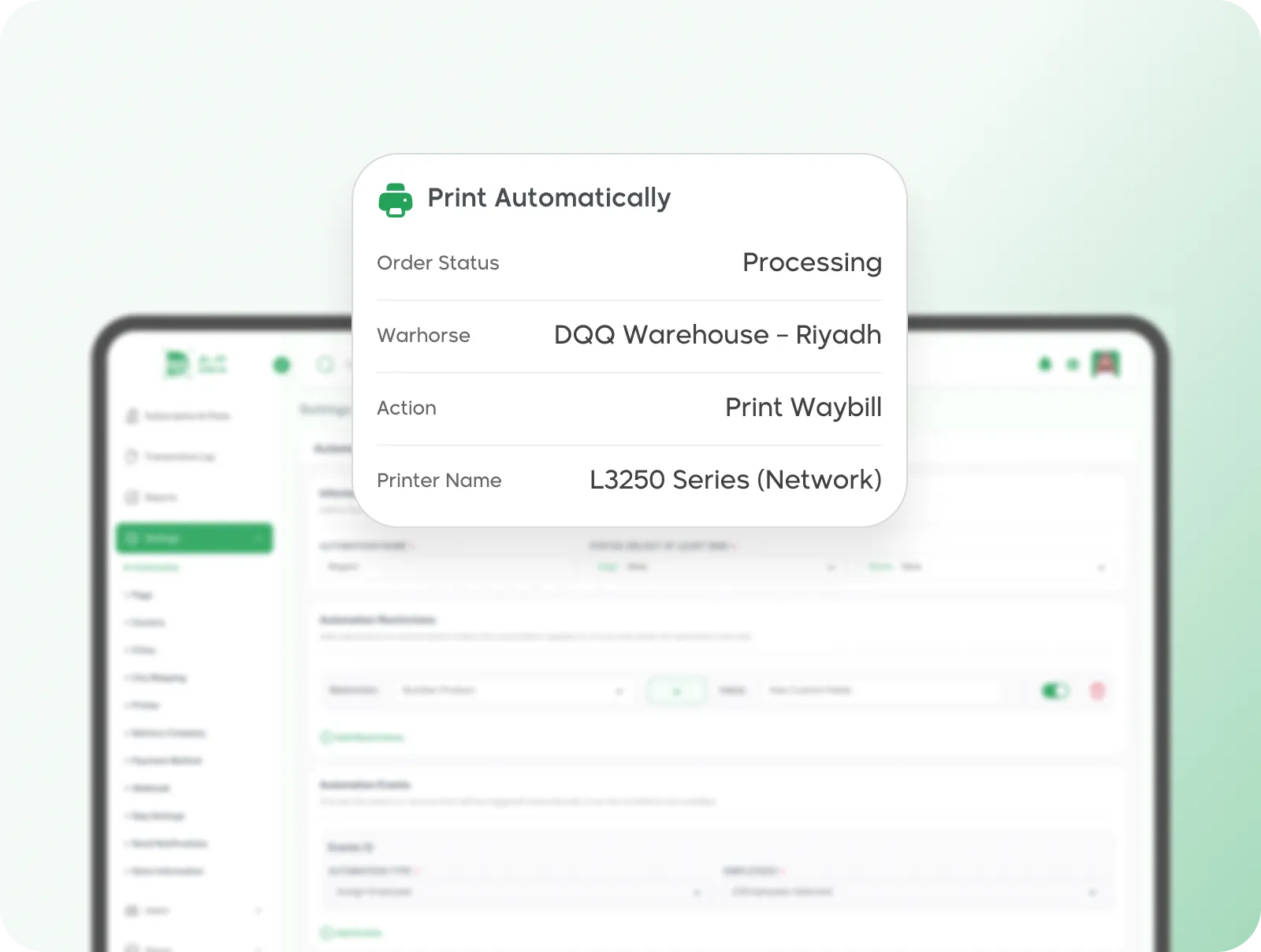
Order ready to ship? The waybill prints automatically. No screens to open, no buttons to press.
How Does Auto Printing Work?
Three simple steps for automatic printing
Set Conditions
Order status, warehouse, shipping company
Choose Printer
Select the printer and the right template
Waybill Prints
Every order matching the conditions gets its waybill printed automatically
From Smart Conditions to Batch Printing
From Smart Conditions to Batch Printing
Smart Conditions
-
Filter by City or Country
Riyadh orders on one printer, Jeddah orders on another
-
Filter by Shipping Company
Aramex, SMSA, or any carrier — each with its own settings
-
Filter by Warehouse or Product
Full control — each warehouse or product can have its own condition
Cloud Printing
-
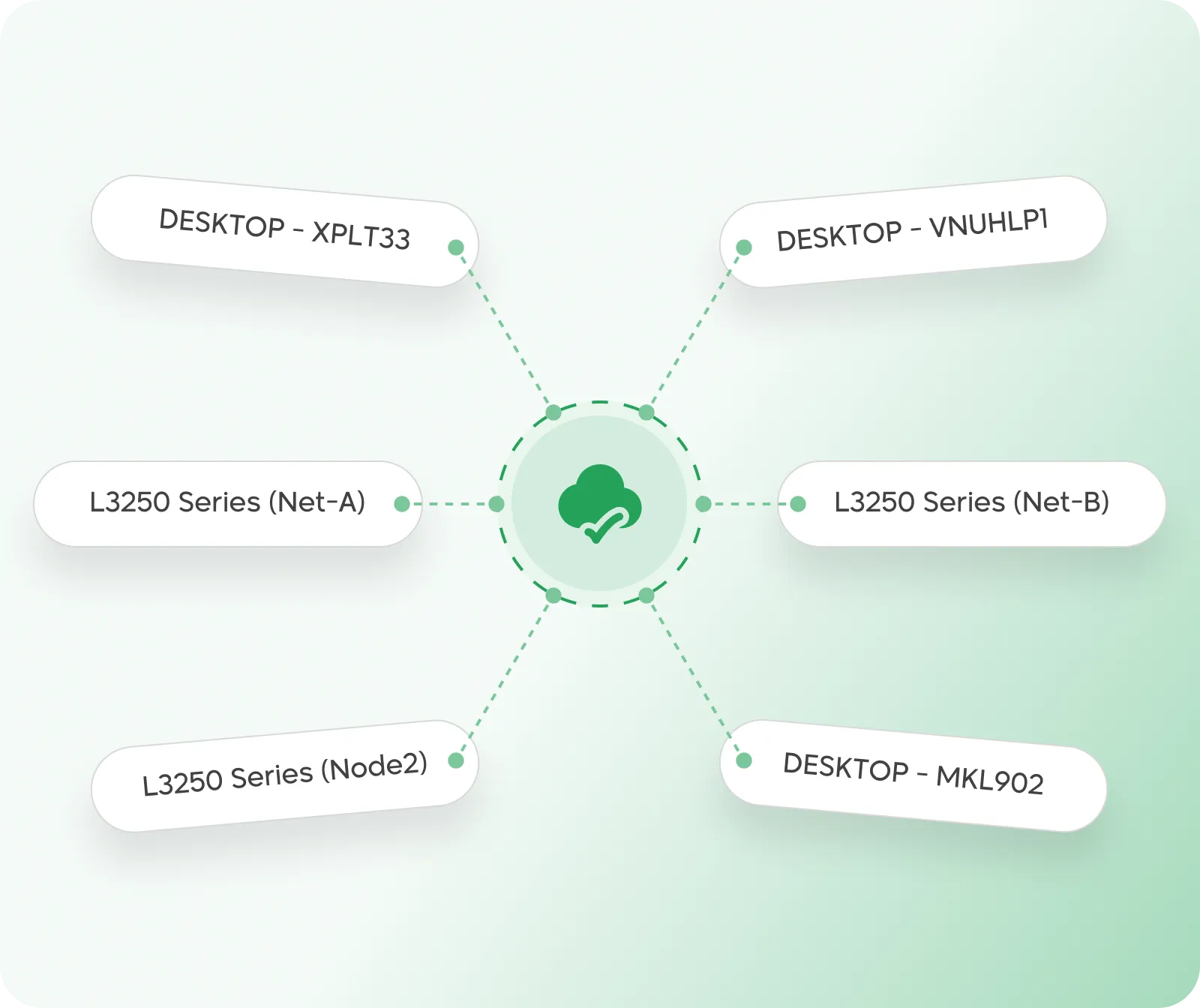
Direct Cloud Connection
Your printer is connected to the system via the cloud — always ready
-
A6 Waybill Ready
Barcode + tracking number + customer address + warehouse address
-
Every Print Logged
Full log — know who printed, which order, and when
Batch Printing
-
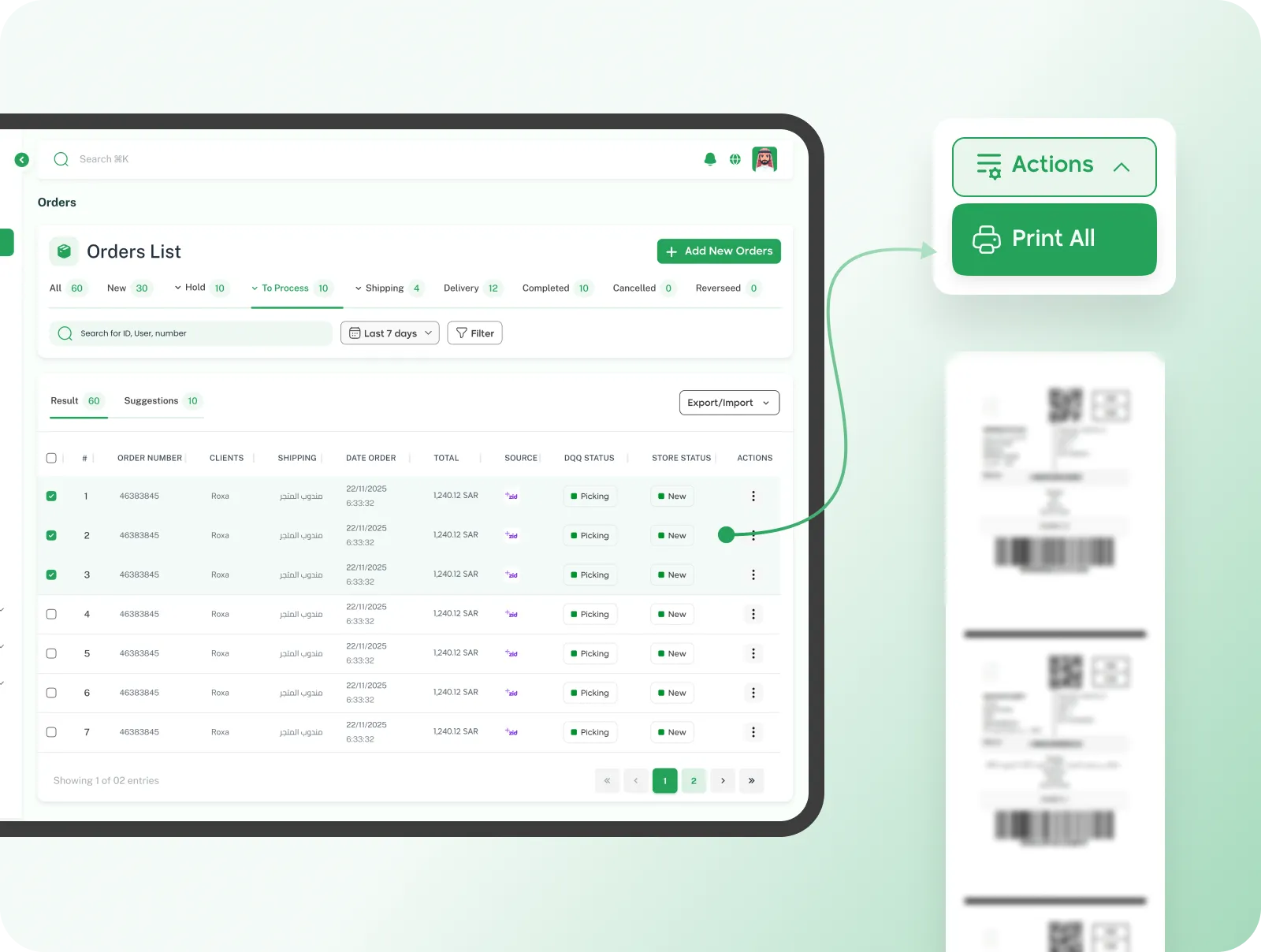
Select & Print
Pick the orders you want and press one button
-
Unified PDF
All waybills in one file — ready to print or save
-
Filter Printed Orders
See from the dashboard which orders were printed and which weren't
Every waybill on time, without your intervention.
Connect the printer to the system, set the conditions, and every new order gets its waybill printed instantly — no opening, no forgetting, no delays.
Join Dqq